The Function Tool
The Function Tool (Workspace > Tools or press Shift+F8) allows you to create custom functions based on standard correlations or user-defined expressions for a target property.
The structure of a function consists of two elements: variables and coefficients. You assign a property type to the variables. The property can belong to any of the object types in the JewelExplorer. Coefficients have a user-defined value.
You can use functions as follows:
- As input in the Property Tool.
- As input in the Function-based Property Modeling workflow.
- As input in the Geomechanical Model workflow.
- As input to the JewelScript Editor.
The functions are stored in the Script Explorer and can be accessed via the Function Tool.
The layout of the function tool is divided into three areas (see the image below).
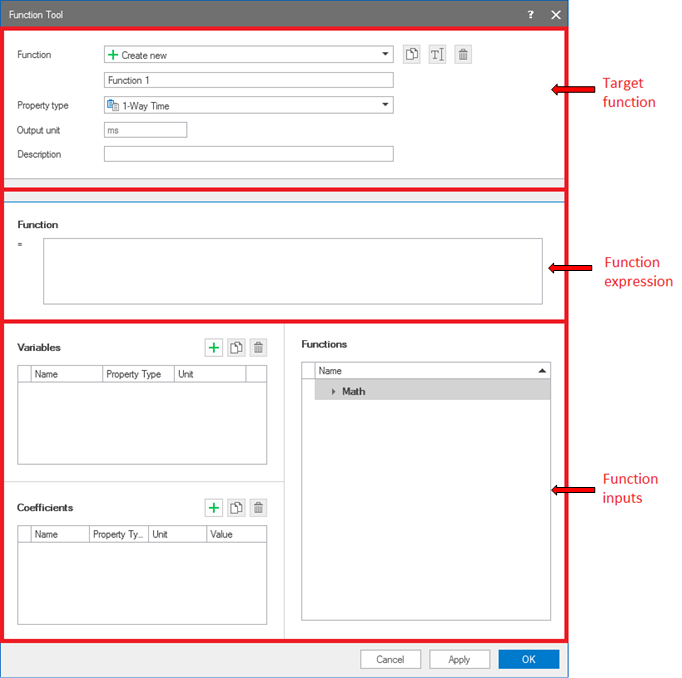
Different 'areas' on the Function Tool click to enlarge
- In the Target function area, you can provide the descriptive 'metadata' of the function such as the function name and target function property type.
- In the Function expression area you type in the expression for the target function.
- The Function inputs area consists of the input variables, coefficients and internal mathematical functions. Use the toolbar adjacent to the variables and coefficients section to create new entries, or to copy or delete the existing inputs.
The Function Tool has the following entry fields:
Function Create a new function, or select an existing function from the drop-down list. Use the adjacent text field to enter the name of the new function. You can duplicate, rename, or delete your existing functions via the toolbar.

|
Duplicates the currently selected function in the drop-down list (i.e. the active function). |

|
Opens the Rename dialog, where a new name can be given to the active function. |

|
Deletes the active function. |
Property type Select the property type for the function output.
Output unit (read only) Shows the units for the function output. You can change the display units using the Display Units (Home > Settings > Units) form.
Description (optional) Use this field to describe the function or insert any comments and notes related to the function.
Function In the Expression field, enter the function expression associated to the target function. In the function, use the variable(s) and or coefficient(s) that you define in the Variables and Coefficients sections on the form. You can optionally make use of built-in functions from the Functions section.
Variables Use the adjacent toolbar to create new input variables, duplicate or delete existing variables.

|
Creates a new variable. |
|
|
Duplicates the currently selected variable in the list. |
|
|
Deletes the active variable. |
In the 'Name' column, specify the variable name. In the 'Property Type' column, select the property type of the new variable from the drop-down list, or change the property type of an existing variable. The units for the variable are displayed in the 'Unit' column.
Coefficients Use the adjacent toolbar to create new input coefficients, duplicate or delete existing coefficients.
|
|
Creates a new coefficient. |
|
|
Duplicates the currently selected coefficient in the list. |
|
|
Deletes the active coefficient. |
You can specify the name of the coefficient(s) in the 'Name' column. By default, the new coefficient names start with 'C' followed by a number. In the 'Property Type' column, select the property type for a new coefficient from the drop-down list, or change the property type of an existing coefficient. The units for the coefficient are displayed in the third column. In the 'Value' column, enter the value of the coefficient. button to open the uncertainty parameter dialog. After you fill in the statistical inputs on the uncertainty parameter dialog, the
  icon next to the coefficient value will indicate that you can now use this as an uncertainty parameter in the volumetric calculations.
Functions To define your function, you can make use of built-in mathematical functions. Click on the arrow in front of 'Math' in the Functions section to open the full list of available math functions. As you hover the cursor over these math functions, the description is shown as a tooltip. Click on the math function to insert in the function expression. For explanations on these math functions, see the Math section of the Property Calculator chapter (note that 'properties' and 'constants' in the property calculator functions are 'variables' and 'coefficients' in the function tool function).
Using the Function Tool
- To create a new function, enter the function name in the Function text field. To edit an existing function expression, use the drop-down list to select the target function. Use the toolbar buttons to duplicate, rename or delete an existing function.
- For a new function, select an appropriate Property type from the drop-down list.
- Optionally, use the Description field to enter details related to the function.
- In the Function Expression field, enter the desired function. The constant values in the function should be defined as coefficients while the existing properties or object attributes must be defined as variables.
- Create a new Variable or edit existing entries, using the variables table and toolbar. Select the property type from the drop-down list.
- Create a new Coefficient, or edit existing entries, using the coefficients table and toolbar. Select the property type from the drop-down list and enter the value for coefficients in the last column.
- The output units must be validated with the resulting dimensions from the function expression. Click Apply to create the function and keep working with the Function Tool or click OK to create the function and exit the form.